Technology and Politics

Americans have always had a say in their government, at least in theory. Since the Treaty of Paris was signed in 1783, the United States of America has been the "land of opportunity," where even a lowly log-splitter, exercising sufficient brains and dedication, can raise himself to the highest executive office. The U.S. Constitution safeguards the right to vote for every citizen over eighteen years of age, with few exceptions, ensuring a government of the people, by the people and for the people. Nevertheless, only about half of eligible voters historically vote for their president. Those who do make it to the polls are more educated than unschooled, more white than black, more men than women, more wealthy than poor, and more old than young.
The image

This may all be about to change.

American politics has seen a few revolutions since The revolution that gave our nation its independence. To date, George Washington remains the only president to be voted into office unanimously, and since his time the politician is obliged to win the hearts and minds of the people. Thus, getting out one's message has been the quintessential challenge of the presidential candidate. Initially, office-seekers relied on stump speeches and the press. Abraham Lincoln won over his supporters through a series of live debates. When radio came on the scene in the 1920s, contenders extended their reach into the very homes of Americans. Votership surged. The advent of television in the late 1940s transformed politics once again, directing the focus of the nation to good looks on camera and message control—getting the perfect sound bite.

In September 1998 two California-based entrepreneurs, Joan Blades and Wes Boyd, became frustrated with the political mess they saw going on in D.C. Feeling very "American," they decided to do something about it and launched an online petition. Within a few days they had gathered hundreds of thousands of signatures. What they found people needed was a sense of empowerment—a way to have their voices heard. Blades and Boyd moved on to form the MoveOn.org Political Action Committee, an online organization which now boasts over 3.3 million members. Almost accidentally, Blades and Boyd caught the attention of the media—as well as campaign organizers, who sent out bulk emails and created flashy fundraising websites faster than you can say donation. But until 2003 internet-use was still a passive venture—another mailing list, a new type of commercial.

Then in November of 2003 social networking was born on the worldwide web. MySpace was followed by Facebook and Flickr in February of 2004, and YouTube joined the family in 2005. Suddenly it was possible to open a dialogue with the country without even picking up the phone. Unlike many tools used by politicians, social networking is cheap and simple enough for the typical American teenager to operate. Perhaps best of all is the outreach. For the first time would-be candidates have tapped into a fresh demographic of voters, elusive up to this point—the technology-savvy youth. Before now, politics was the game of Poli Sci grads and NPR junkies. On the internet, power is in the hands of real Americans: the housewife in her living room, the student in his dorm. Rather than creating the perfect ten second sound bite, candidates must let go and have a real conversation. Interactive. Up close and personal. Maybe as candidates are forced back to earth and voters gain a stake in the process, America will become the voice of the unschooled as well as the educated, the poor as well as the rich, men and women of all ages and every race. After all, isn't that what democracy is supposed to be?

GPS Cell Phone

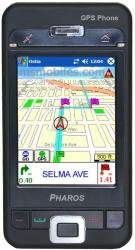
The Global Positioning System (GPS) was funded, developed and controlled by the US Department of Defense. Since the late seventies, GPS has become an imPharos GPS Phoneportant aid to navigation around the world. Initially designed for the US military, GPS became publicly available years later and it is now considered an important feature in lots of consumer products.

 How does GPS work? Well, basically there are three elements that make everything work: satellites, earth monitoring  stations  and receivers (ex: cell phone, telefone celular). GPS provides specially coded satellite signals that can be processed in a GPS receiver, enabling the receiver to compute position, velocity and time.

Today, most cell phones (telefone celular) are not limited to carry on just a conversation. Features like mp3 player, digital camera and video camera have all become standards in the latest cell phone models. It is expected that the GPS feature will soon be added to this list, and it will offer the capability of tracking any cell phone user.

The capability of tracking a cell phone user becomes important in emergency situations, like a car accident, thru the use of 911 emergency phone call, where every minute may be a matter of life or death. In situation like this, the GPS system may pinpoint the exact location of the road accident, enabling emergency services to be quickly dispatched.

It is important to mention that so far most GPS system in cell phone (telefone celular) is restricted to tracking information only. However, one can have navigational capability thru the use of full screen cell phone/PDA combos with map displays and other cellular phone accessories, and third party paid services. If one does not want to sign up for a monthly paid subscription service, he can make use of one-time-paid-only software programs that will enable some of the navigational capabilities.

Although there are many benefits in using GPS cell phones (telefone celular), there are some people who are concerned about the violation of personal privacy. Since the US Congress has not authorized location tracking without actual evidence of wrongdoing, there have been court hearings which have not approved the requests of government agencies in obtaining the cell phone GPS tracking information for suspects or ordinary citizens.

This privacy matter has made some progress towards the cell phone user`s rights, since there are some laws that have been passed which guarantees that GPS cell phone users will have some protection from the release of the tracking information, with the exception of 911 emergency cell phone calls (telefone celular). It is expected that these laws will guarantee that the benefits of GPS in cell phones will be enjoyed by everyone without infringing anybody`s privacy.

Sometimes when there is a technological innovation, there are also some concerns about privacy or some rights infringements. But no matter how much of a concern this is, it seems that a compromise will always have to be reached, so that new technologies will take their places in everyone`s lives. After all, we all live in a globalized consumer world. By the way, have you already got your GPS cell phone?

Take Charge Of Errant Files And Folders!

If you are like most people, you have hundreds of important files spread all over your hard drive. It seems that there is not a universal way of handling these files and folders. Luckily there are a few simple things that you can do to manage and organize all your work.

1. Keep it simple. If you have multiple customers/clients/patients that need extra information stored about them outside of your usual database, create a file folder for the information and use the same naming conventions on all the files. For example: You could use the first three letters of a last name followed by 01.

2. Numerical files can be sorted numerically. When dealing with numerical files, make sure to add an initial zero before the number 1 or 2. For example: If you have one file named customer10 and another file named customer1, the customer10 file is sorted first if you sort by name. This can be really annoying. However, if customer1 is renamed to customer01 it will take care of the problem.

3. The amazing Windows Run command. If you have Windows 95 or higher, you have access to the nifty run command. In our testing, the run command will open any folder or file in the Windows folder and any other folder locations specified in your Autoexec.bat. These are known as paths. Common paths are the Windows folder and system folders. Paths can also be C:Program FilesMicrosoft Office. This means that in the Run window, you can type 'excel' and Microsoft Excel will open. You can also open folders. Just type the name of the folder and it opens right up. If you type 'calc' in the Run window and press Enter; Calculator opens. Very cool! Poke around and see what else you can do with the Run command. You can access Run by clicking on Start and Run.

4. Working with Microsoft Excel spreadsheets. Speaking of Excel, it is easy to work with different sheets inside the same Workbook. Think of the Workbook as the single *.xls file. When Excel starts a new Workbook, you have Sheet1, Sheet2, and Sheet3 on the bottom of the screen. You can right click on any of these sheets and rename them to something else. Simply left clicking on the Sheet takes you to that Sheet.

5. Working with Microsoft Word Documents. It is easy to add revision remarks and page numbers to Word Documents. Revision remarks are important if you are working on a Document that needs to be seen by multiple people multiple times. For example: A small to medium project. Developers use Version numbers to track their software; the same should be done with Word Documents. To open the Header or Footer of a Word document, click on 'View | Header and Footer'. Next, click on the 'Switch between Header and Footer' button to switch between the two. Click on the 'Insert Page number' button to automatically add page numbers to the Document. (It would be embarrassing to give a technical presentation without page numbers. Your audience would lose confidence in your presentation, not to mention your word processing abilities.) Next, you can add revision remarks. Simply type 'Rev. A' below the line that has the page number OR whatever remarks you want.

6. Finally, have you ever been inside a folder and you can't find a sub-folder or a file? Well, it is very easy to get those folders and files to shape up. Click on 'View | Arrange Icons By' and choose an option. This will get those wandering folders and files to get back in line!

How to Choose the Right Webcam Surveillance Software?

Many people want to have some kind of spy equipment for better home security. However, besides wireless spy cameras, VCR or DVR systems, there is also special software used to control those surveillance gadgets.

Large companies use professional security systems along with already built in (embedded digital video recorder or PC based DVR soft) spy camera control software. But what about smaller guys? Do you also have to spend thousands of dollars for professional spy security system and software to feel safe and secure in your house? And the answer is not necessarily.
 
The image
 

Webcam for Spying Purposes

You have the ability to use your webcam (connected to your PC) as a surveillance tool. And to control it, all you need is inexpensive webcam surveillance software. As a matter of fact, such software allows you to connect more than one camera. It can display as much as 16 webcam views on your computer screen.

Moreover, webcam surveillance software even allows you to detect motion and start capturing an event within milliseconds. This means that you don't have to keep your webcam surveillance software turned on all the time in order to secure the area. By using motion detection webcams, you can also save your computer's HDD (hard drive) space.

You know, video takes a lot of hard drive space. Non stop recording for 24 hours can cost you 1GB of HDD space a day. Well, it depends on the chosen image quality. Lower quality images will require less bandwidth. Also, if you set lower FPS (frames per second), then you'll save even more HDD space.

But if you have a large HDD (like 160GB or more), then there's nothing to worry about.

What to Look for in Webcam Surveillance Software?

Before you decide to order webcam surveillance software, there are a couple of things to consider. Let's take a look at some of the features of webcam software that you should seriously consider, ok.

  • Audio Capturing - Does your webcam surveillance software have audio capturing option? If not, then you should consider that carefully. If you want to record a conversation, it's crucial.

  • Compressed Files - Does your webcam software compress video files? If not, then the space of your HDD might fill up quickly. Try to search for software that compresses the video without losing its quality.

  • Remote Access - This is very important. If you leave your webcam to record the area, you should have the ability to access your webcam's view via internet connection. This is very neat function that is absolutely must in webcam software.

  • Motion Detection - We've already mentioned that. Motion detection is also extremely important. You don't want to record the area when nothing's going on, right. So make sure that motion sensing is enabled in your software.

  • Alert Options - Does the webcam surveillance software have an alert option? Some webcam software alert when they detect something. They can alert via email or even dial a phone number. You should seek for this feature, because it's very neat.

  • Multiple Webcams - Can your surveillance software record a live view from multiple web cameras? 2, 4 or 16? If you want to connect more than one camera to your PC, then multiple webcam support is absolutely must in the software you choose.

  • Stealth Mode - Does the webcam software run in stealth mode? Stealth mode means that nobody can see if the software is running or not. Not even if they Press "Ctr+Alt+Del" and look at Windows Task Manager!


Look for webcam surveillance software that allows you to do all or at least most of the functions mentioned above. If your software isn't capable of detecting motion, doesn't have alert option, doesn't have audio recording options, then search for a better solution.

In Conclusion

Webcam software (for spying or home protection purposes) combined with a few inexpensive webcams, can definitely serve as a basic home security system. You can put your webcams in the most important places and have your PC to record each camera's view. And if motion sensors detect something unusual, they can alert you via email or phone.

However, if you're really looking for quality and all-in-one solution for professional home protection, then a more powerful DVR security system with multiple spy cameras could be your best shot. Such systems cost over thousand dollars, but they're ideal for quality home or office protection.

A Purchase Guide to Budget Notebooks

Since it became commercially available back in the early eighties, notebooks called the attention of computer users because of its small size and portability. Not much of a commercial success back then, it only took a short time before the computer industry improved this item, up to a point that is now considered to be one of the best selling computer consumer products.

For one who intends to buy a budget notebook, he may have some difficulties in picking the right one, since there are several notebook manufactures offering so many models. Budget notebooks are in a class by itself with basic features but capable of delivering full solutions for computer related tasks.

For an easy guide to budget notebooks, check the following major manufactures:

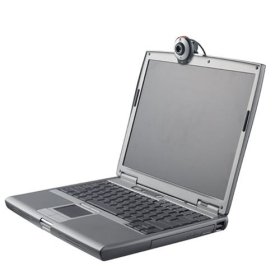
QuickCam for Notebooks

SONY
Sony VAIO notebooks are fashioned products targeted to consumers who demand flexibility and power without compromise. It is expected to find features such as 15.4`` WXGA, duo core processor and 100 gb hard disk. Although not the cheapest of budget notebooks, it compensates the higher price by offering more technological features.

Most common features one can expect from Sony budget notebooks: 1 - Intel Core Duo Processor T2250 1.72 Ghz; 2 - Windows Vista; 3 - 1 gb DDR2 ram; 4 - Widescreen XGA display type; 5 - Intel graphics media accelerator 950; 6 - 100 gb SATA hard disk 5400 rpm; 7 - CD-RW/DVD rom; 8 - wireless lan 802.11 a/b/g; 9 - Modem and Lan port 10/100; 10 - USB connectivity; 11 - It weighs around 6.5 pounds; 12 - Lithium ion battery up to 5.5 hours; 13 - One year limited warranty. Price starts from U$ 929.00 and up according with optional accessories.

DELL
With features such as 15.4`` WXGA, duo core processor and ATI Radeon Xpress graphics, Dell budget notebooks offer a flexible combination of power, mobile productivity and entertainment at a good price.

Most common features one can expect out of these notebooks are: 1 - AMD Turion 62 X2 1.8 ghz/1mb cache processor; 2 - Windows Vista; 3 - 512 mb ram; 4 - Widescreen XGA display type; 5 - ATI Radeon Xpress 256 mb video graphics chipset; 6 - Up to 80 gb hard disk; 7 - CD-RW/DVD rom; 8 - It weighs around 6 pounds; 9 - 9-cell lithium ion battery; 10 - One year limited warranty. Price starts from U$ 549.00 and up according with optional accessories.

TOSHIBA
All Toshiba budget notebooks feature an 15.4`` diagonal WXGA display, DVD optical drive which reads and writes up to 11 formats, high speed wireless lan (802.11 b/g) for easy connection in networks.

Most common features one can expect out of these notebooks are: 1 - Intel Celeron processor with 1+ Ghz; 2 - Windows Vista; 3 - 512 mb ram; 4 - Widescreen XGA display type; 5 - Radeon Xpress 200M video graphics chipset; 6 - 60 gb hard disk; 7 - CD-RW/DVD rom; 8 - wireless lan but no Bluetooth connectivity; 9 - Modem and Lan port 10/100 mbps; 10 - USB and firewire connectivity; 11 - It weighs around 5 pounds; 12 - 4-cell lithium ion battery; 13 - Tv-out s-video; 14 - One year parts and labor warranty. Price starts from U$ 599.00 and up according with optional accessories.

HP
HP Budget notebooks with features such as 15.4`` display screen, AMD Sempron 3500+ and a sophisticated black resin finish, offer an attractive mix of style, mobility and performance.

Expected features one can find in this HP notebook category: 1 - AMD Sempron 3500+; 2 - Windows Vista; 3 - 15.4`` WXGA Widescreen; 3 - 512 mb ddr2; 4 - CD-RW/DVD rom; 4 - Wireless connectivity 802.11b/g wlan; 5 - It weighs around 7 pounds; 6 - Nvidia video graphics chipset with 256 mb; 7 - 6-cell lithium ion battery; 8 - USB, lan and modem port; 9 - Integrated stereo speakers; 10 - 60 gb SATA hard disk; 11 - Tv-out s-video; 12 - One year warranty in parts and labor. Price starts from U$ 569.00 and up according with optional accessories.

A while ago portable electronics devices were a luxury at an expensive price. Nowadays it became an affordable must have kind of product for lots of people. Notebooks are in this category for sure! And basic notebooks are the best option for those who are in a tight budget. So, if portability is a must for your personal or professional computer related tasks, waste no more time. Get yourself a budget notebook!

Guide to Buying Hard Drives

Apart from being one of the most essential parts of your computer, hard drive storage is constantly updating, in terms of both capacity of disk space and in physical size. When it comes time to upgrade your disk storage, there are a number of factors for you to take into account. Once you've made basic decisions about size, connectivity, speed and data transfer rate, and whether you want an internal drive or external, you can search through Myshopping.com.au to find the most suitable brand, and model, and compare the prices of different vendors.
Figure 1: What the inside of a hard drive looks like
 Hard Drives

How A Hard Drive Works

Your hard drive has a number of magnetized platters connected to a spindle. The spindle spins the platters at a very fast speed while a series of read/write heads scan over them both looking for and writing information. This information is transferred via a cable system, or through a wireless connection to a hard disk controller, which in most systems is built into the motherboard, or in some systems installed as an add-in card. The information that comes from your hard drive through its controller is then made available to the components of your computer. The effectiveness of your hard drive (its performance) depends on how much of its capacity remains unused, how well organised the data is (known as fragmentation) and its data transfer rate, which in turn is dependent on its connection type and the drive's spin rate.

Internal Hard Drives

Most computers from, the most basic home models up to the most powerful servers, have an internally installed hard drive. Technology today ensures that they are all generally fast, reliable, and offer dependable storage ability. Most modern computers have installation slots and cabling to enable you to install additional hard drive. This allows you to increase your storage capacity without giving up your existing hard drive.

Internal Hard Drives

External Hard Drives

These drives are essentially the same drives as ones installed inside computers, but cased inside a protective, portable case. This is a good solution for people who work remotely and need to transport large amounts of data. If an external hard drive is your choice, make sure your computer is compatible with the interface that the hard drive uses. An add-in card, such as a FireWire card can help to increase your computer's capabilities. You can compare different brands of external hard drives simply at Myshopping.com.au and search on the connection type, or other specifications.

External Hard drives

Laptop Hard Drives

There have been many advances in miniaturization of hardware components for laptop computing, and hard drive technology is not left out of this loop. Laptop hard drives function in exactly the same way as internal hard drives on other computers, only they are designed to provide maximum storage and efficiency in the smallest possible package. For added flexibility, some laptop computers come with removable hard drives that can be easily installed and removed. However, before you buy a hard drive for your portable computer, check that the hard drive's specifications will meet the standards of your computer, as many laptop hard drives are proprietary, and are not compatible with other brands and models.

Laptop Hard Drives

Size

Your hard drive stores your operating system, its programs (games and applications), your working data, and your digital music and movies. Most new computer purchases have a minimum of 80 GB of hard disk space; many have considerably more. Hard drive space is one of those things, once you have it, you'll find ways to fill it soon enough. There is no real rule of thumb, but consider the cost per gigabyte of storage as a way to guide your purchase. If you work with large files, such as music, video and graphics, it pays to have a big storage space for your work. It may pay you to have two hard drives, one that houses all your programs and applications, and another for storing your work and projects.

You may want to compare the price of say a 160GB drive against two separate 80 GB drives. If one drive fails all is not lost. Today's hard drives however, are fairly robust pieces of equipment and providing they are not abuse, will serve you well for a long period of time.

up to 32 GB Hard Drives

32-64 GB Hard Drives

64-100 GB Hard Drives

100 GB and more Hard Drives

Interface

One key distinguishing factor between hard drives is the way in which they connect to your computer. There are a number of basic types of connection schemes used with hard drives. Each connection type has a range of differences in performance.

IDE (INTEGRATED DRIVE ELECTRONICS)

This is by the most common connection methods. Because the hard drive controller is on the drive itself rather than on the motherboard, it helps to keep costs down. There different IDE standards available. Mostly, you will want to purchase the fastest possible standard that your computer can support. Most computers will support a standard that is faster than what the computer currently supports, so you can buy a faster drive, and update your computer at a later time. The different IDE standards, in order from most basic to fastest, are:

ATA (Basic). Supports up to two hard drives and features a 16-bit interface, handling transfer speeds up to 8.3 MB per second.

ATA-2 or EIDE (Enhanced IDE). Supports transfer speeds up to 13.3 MB per second.

ATA-3. A minor upgrade to ATA-2 and offers transfer speeds up to 16.6 MB per second.

Ultra-ATA (Ultra-DMA, ATA-33 or DMA-33). Dramatic speed improvements, with transfer rates up to 33 MB per second.

ATA-66. A version of ATA that doubles transfer rates up to 66 MB per second.

ATA-100. An upgrade to the ATA standard supporting transfer rates up to 100 MB per second.

ATA-133. Found mostly in AMD-based systems (not supported by Intel), with transfer rates up to 133 MB per second.

IDE / EIDE Hard Drives

Serial ATA Hard Drives

Ultra DMA 100 Hard Drives

SCSI (SMALL COMPUTER SYSTEM INTERFACE)

This is the hard drive interface standard used by many high-end PCs, networks and servers, and Apple Macintosh computers, except for the earliest Macs and the newer iMacs. While some systems support SCSI controllers on their motherboards, most feature a SCSI controller add-in card. SCSI drives are usually faster and more reliable, and the SCSI interface supports the connection of many more drives than IDE. While SCSI drives come in many different standards, many of them are not compatible with one another. So it's important be know that your computer supports the drive you plan to install. The different SCSI connections are:

SCSI-1. A basic connection using a 25-pin connector, supporting transfer rates up to 4 MB per second.

SCSI-2. Uses a 50-pin connector and supports multiple devices with a transfer rate of 4MB per second.

Wide SCSI. These drives have a wider cable and a 68-pin connection that supports 16-bit data transfers.

Fast SCSI. Uses an 8-bit bus but transfers data at 10 MB Per second.

Fast Wide SCSI. Doubles both the bus (16-bit) and the data transfer rate (20 MB per second).

Ultra SCSI or Ultra Wide SCSI. Uses an 8-bit bus and transfers data at 20 MB per second.

SCSI-3. Features a 16-bit bus and transfers data at 40 MB per second.

Ultra2 SCSI. Uses an 8-bit bus and transfer data at a rate of 40 MB per second.

Wide Ultra2 SCSI. Uses a 16-bit bus and supports data transfer rates of 80 MB per second.

SCSI Hard Drives

Ultra320 SCSI Hard Drives

FIREWIRE (IEEE 1394)

The FireWire standard is becoming popular in portable hard drives because it can be connected and removed without having to reboot the computer. It supports data transfer rates of 50 MB per second, which means it is ideal for video, audio and multimedia applications. FireWire requires a dedicated add-in card and the hard drives in use require an external power source, but the interface can support up to 63 devices simultaneously.

FireWire Hard Drives

USB 1.1 (UNIVERSAL SERIAL BUS)

Pretty much all computers today include USB ports on their motherboards. (On older model, you can install an add-in card.) USB controllers can be used to connect external hard drives, and can support as many as 127 devices simultaneously either through USB port hubs or linked in a daisy chain fashion. USB controllers do delivery power to devices connected to them, but many hard drives still use an external power source. USB is limited by its data transfer speed, the maximum rate being about at 1.5 MB per second.

USB Hard Drives

USB 2.0 (HI-SPEED USB)

A more recently introduced and far better connection standard that offers backward compatibility and data transfer rates of up to 60 MB per second. USB 1.1 system can use a USB 2.0 device; it will need a USB 2.0 controller card to achieve the higher transfer rates.

USB 2.0 Hard Drives

FIBRE CHANNEL

Fibre Cabling is mainly used for high-bandwidth network servers and workstations, providing very fast data transfer rates (up to 106MB per second), and connection at long cabled distances, although it is expensive and you need to install a special interface card.

Spin rate

Data transfer rate is crucial to how well your computer performs for you. Apart from the connection types above, the performance of your hard drive depends on its spin rate, measured in RPM. Higher RPM generally means faster data transfer rate. The lowest spin speed that is acceptable in computing today is 5400 RPM. The common standard at present is 7200 RPM. But higher speeds are available in SCSI drives, and it is one area of computer system technology that is constantly being developed.

3600 RPM Hard Drives

4200 RPM Hard Drives

5400 RPM Hard Drives

7200 RPM Hard Drives

10000 RPM Hard Drives

15000 RPM Hard Drives

A larger capacity hard drive will not necessarily make your system function any faster unless you are low on available disk space with your existing drive. But a drive with Ultra ATA/100 or ATA/133 and a 7200 RPM spin rate will pretty much guarantee an improved hard drive performance.

Other considerations

CACHE

Cache (pronounces 'cash') is additional temporary memory that acts as a buffer between the system and the drive. Frequently accessed data is stored in the cache for quick access. Cache sizes vary from 512 KB up to 16 MB on some SCSI drives. The larger cache you have on your drive, the faster your drive will transfer data. If you are working with large files, such as video, images and audio files, it pays to have the largest cache you can get (8MB or more).

SEEK TIME

The data on your disk is stored in tracks and sectors and when you instruct your hard drive controller to retrieve some data, it goes looking. The seek time is a measure of how long it takes the hard drive to find a specific track on a disk. Seek times can vary slightly from disk to disk and a drive with a faster seek time will always perform better.

INTERNAL AND EXTERNAL TRANSFER RATES

These two rates tell how fast a drive actually reads the data and passes it along to the system. Internal Transfer Rate refers to the time it takes for a drives heads to read data from the platter and pass it to the drive's cache. The External Transfer Rate (sometimes called the Transfer Rate or the Burst Transfer Rate) is a measure of the time it takes to send the data from the cache all the way to the computer's memory. Naturally faster transfer rates provide better performance.

S.M.A.R.T. (Self-Monitoring Analysis and Reporting Technology)

This is a nice built-in feature in some hard drives that can help alert you to a potential hardware problem. Your computer's BIOS must support this in order for the SMART function it to work, however the drive itself will still work in a system without it.

Buying and installing a hard drive has some technical aspects that you need to take into account. Use Myshopping.com.au to compare different hard drive makes and specifications to find the drive that will work best for your needs and computer. You can compare prices and service offers from different vendors.

Guide to Buying a Webcam

 How web broadcasting works

Webcams are those handy little cameras that attach to your PC and send images to a web page that can be viewed by others. This enables you to share daily life events with friends and family in other parts of the country or the world, or to arrange a video-conference with colleagues and maintain long distance relationships of all kinds. Of course the number of ways to use this technology is limited only by your imagination.
PC Camera
Web Cameras

But before you buy a webcam, it pays to understand a little about how the technology of broadcasting images over the Internet works. Of course, if you're a full bottle on this already, you can skip this section and go straight to browsing the options on Myshopping.com.au where you can compare products and suppliers, their specifications and prices.

Webcams provide 'real time' images of people; places and events that can be viewed 'live' on a web page. The broadcasting end has a camera that captures the images, feeds them into a computer to an ISP and out to viewing pages across the Internet. There are two different types of broadcast: streaming images, where the images are a constant stream downloaded in video format; or Java, where the images are captured at fixed time intervals and refreshed on the web pages at a rate fixed by the broadcaster.

The Applications - What are you intending to broadcast, and to whom?

There is a wide range of uses of webcam technology. Some examples include personal 'Big Brother' style diaries, sharing of family events, workplace security, video conferencing, virtual tourism, road traffic management, weather watching, event broadcast and a host of others.

Before you make a choice about any webcam equipment, it helps to decide exactly how you want to use the technology, in other words, what you are intending to broadcast. This decision will impact upon the type of camera you use, and how you use it.

A second consideration is, who will be viewing your content? What level of quality is expected? This will help determine the type of camera you use, the software involved and your Internet connection. Of course, your Internet connection may be a limitation on how much you can do.

The requirements for video conferencing are different from the requirements of workplace security, which are different again from the requirements of sharing a family event.

The physical components

There are a number of physical components required to make web cam technology work. At the top of the list is the camera itself. Then, depending on the type of camera you use and the way in which you want to deliver the content to the Internet, you may need to incorporate video capture hardware in your computer. Some software is required to help you process the data, and Internet connection is required and a web page into which the data is fed.

CAMERA CHOICES

Your choice of camera depends somewhat on what you are intending to show. If you need to reach a large public audience yo may want good quality camcorder or megapixel camera that captures high quality images. If it's just for seeing who's at your front door or keeping an eye on the kids in their playroom, then it may not need to present high quality images. If you are intending to use it outdoors, it will need to be weather proof and you may need to consider sun and UV protection. Available power supply and any robotic requirements for camera movement and focus are extra considerations.

Dedicated webcams

The most basic webcams connect to a PC using a simple USB connection. A wide range of cameras with accompanying software at a range of prices is available for this type of application. Simply search though Myshopping.com.au to compare prices and specifications. Dedicated webcams are simple to install and easy to use, but come with limitations that affect the quality of the images, such as low number of frames per second (refresh rates) and resolution (pixels per inch).

Camcorders and security cameras

Higher quality images and more camera control come from using camcorder and security cameras. To use these devices you will need to add a video capture card to your PC. Once you have that installed however, you can use a wide range of cameras from broadcast cameras to miniature spy cameras. You can include variable lens options, filters for daylight and low light situations, as well as robotic controls for panning and focus adjustments. You can search through Myshopping.com.au for camcorder selections.

Integrated cameras

An integrated camera combines the camera and the optical hardware with a video server, and as such requires no additional software. They can be used in network situations or as stand-alone devices for monitoring progress on a construction project for example.

Megapixel cameras

Network megapixel cameras combine network capability with high quality digital camera technology. These cameras offer excellent quality but this creates large files sizes, therefore they have limited application in constant streaming video. However for interval refreshed archive image collection, they are ideal, providing a constant record and high quality. You can search through Myshopping.com.au for digital camera selections.

SOFTWARE

If you are not using an integrated camera solution, you will need to install an encoding program like Webcaster or MediaCaster to transfer your images to a web page.

At the receiver end, when web surfers browse the internet and wish to view live video on the web for the first time, they will need to download dedicated applications that show the content such as an ActiveX control, Windows Media player, Flash player or the like.

INTERNET CONNECTION

Finally, you need an Internet connection. The hardware you will need may include a modem for dial-up connection, or modem/router for a broadband solution. Naturally the higher the quality you want, or the faster refresh rate you want, the more bandwidth you will need. ADSL (Broadband) is going to offer you the best solution, but keep in mind what your Internet connection when you are making choices of cameras and feeder software.

Webcam applications work well with wireless solutions. Make sure when you are purchasing a camera or network video solution that it is compatible with any wireless system you may be using in a LAN.

Key considerations

The specifications that are variable with webcam applications, and are affected by camera type, web interface and Internet connection, include the number of frames per second and the image resolution.

Frames-per-second is the number of times a still image flashes by in a second to give the appearance of moving pictures. In Australia, the standard television PAL format is at 25 frames per second. A webcam with up to 30 frames per second will show normal video images. But the more frames per second you demand, the more bandwidth, memory and processing power is required.

Resolution is measured the number of pixels per inch. High quality photographs require a high resolution. But the standard for web images is a low 72 dpi. Higher resolution images will not be of any better visual quality, just slower to upload and download.